Guides
How to Translate Manga Without Photoshop: 3 Methods Tested in 2026
Updated 2026-08-01
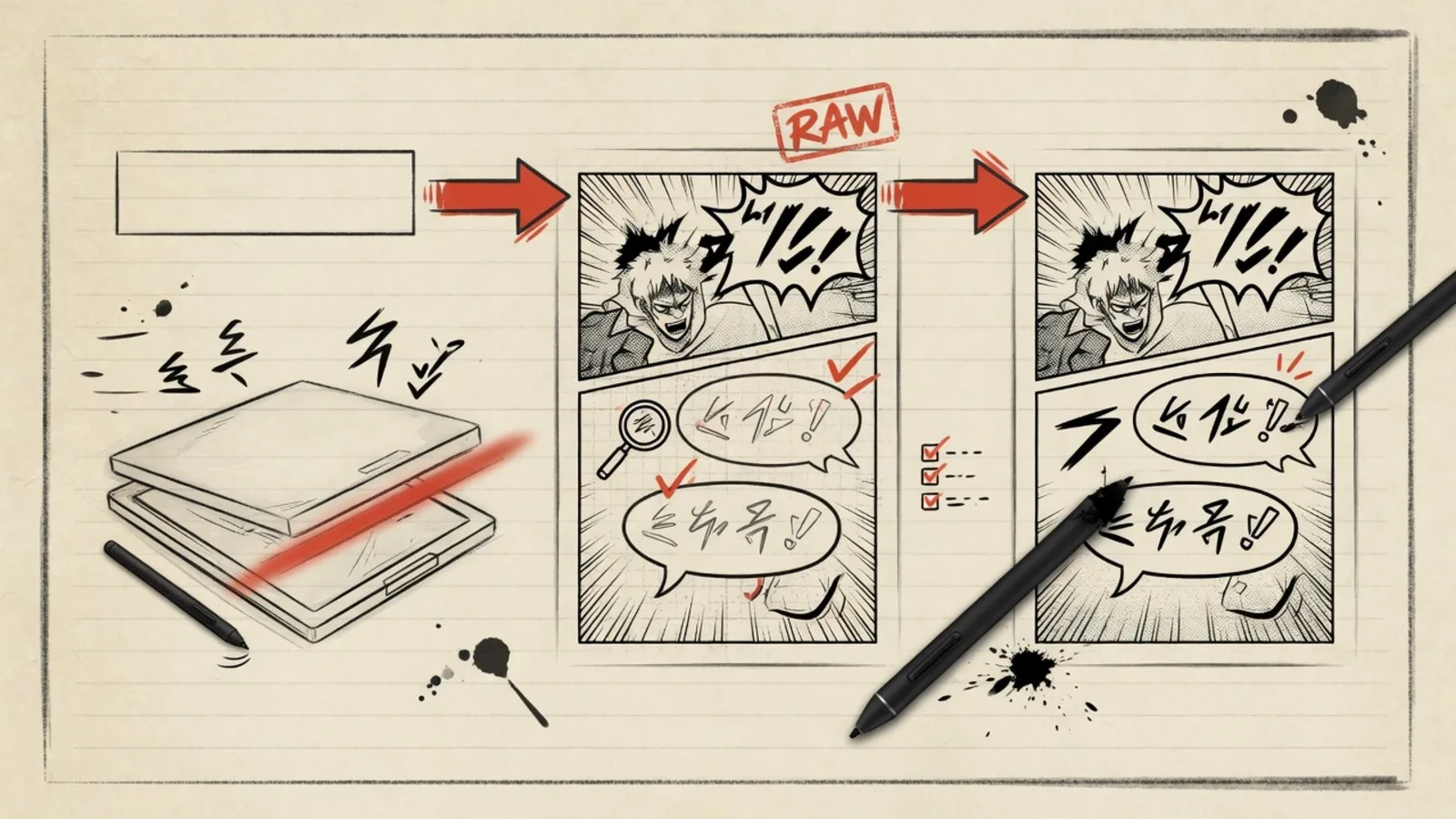
Three real workflows for translating manga pages without Photoshop—manual tools, browser helpers, and end-to-end AI pipelines—compared by speed and layout quality.
Think translating manga requires Photoshop and a design degree? It doesn't. Here's what actually works.
You know the drill.
You find a manga you're dying to read. There's no English translation in sight. You think, "Fine, I'll do it myself." You open a tutorial. Step one: "Open Photoshop and create a new layer…"
And that's where you close the tab.
Here's the truth: you don't need Photoshop to translate manga. Not in 2026, and honestly, not for the last several years.
I spent three weeks testing every manga translation tool and workflow I could find. The conclusion is straightforward: the best approach for most people isn't "pure manual" or "pure one-click" — it's finding a tool that matches your skill level and actually lets you finish the job.
This article walks you through three Photoshop-free methods to translate manga, backed by real testing data. From the dead-simple AI tool that does everything for you, to the free, fully offline DIY pipeline — you pick.
Why Translating Manga Isn't the Same as Translating Text
Let's get one thing straight: manga translation is a completely different beast from document translation.
Translating a single manga page involves six steps:
- Detection — locate every speech bubble and text region on the page
- OCR — extract the original Japanese/Korean/Chinese text from the artwork
- Translation — convert the text to your target language
- Clean-up — erase the original text from the bubbles without damaging the art
- Typesetting — place the translated text back into the bubbles with proper fonts, sizing, and alignment
- SFX handling — decide what to do with sound effects (ドン!/ WHAM!) that are drawn into the art itself
Only step 3 is actual "translation." Everything else is image editing and layout work — which is exactly why Photoshop became the default recommendation.
But Photoshop has three problems: it's expensive, it's hard to learn, and it's overkill for what most people need.
So what are the alternatives?
Three of them. And they all work.
Method 1: AI Manga Translator (Easiest, Recommended First)
If you want to translate manga with the fewest clicks and the least headache —
👉 AI Manga Translator is the tool you should try first.
What It Does
Here's the pitch: you upload a manga page, it gives you back a translated image — bubbles, layout, and visual flow all preserved.
This isn't one of those tools that extracts text into a plain document. It's a true image-to-image translator. The original art stays intact. The speech bubbles keep their shape and position. The only thing that changes is the language inside them.
How Simple Is It?
- Upload your manga page (JPG or PNG)
- Pick your target language
- Wait a few seconds, then download the finished page
That's it. No manual erasing. No layer management. No staring at font menus wondering which one "looks right" for a shonen battle cry. AI Manga Translator bundles OCR, machine translation, bubble inpainting, and layout preservation into a single pipeline.
Pricing and Use Cases
New users get 10 free credits on signup — enough to translate 10 pages at zero cost (1 page = 10 credits). That covers a full short chapter so you can see the quality for yourself before paying a cent.
After that, three plans:
- Basic: $10/month (billed annually) — ideal for casual readers translating a few chapters a month
- Pro: $26.58/month — for dedicated manga fans translating regularly
- Ultra: $53.25/month — for scanlation groups or users processing high volumes
Failed translations auto-refund credits, so you're never charged for a page that doesn't come out right.
Know Its Limits
AI Manga Translator shines for readable, shareable translations. If your goal is to understand the story, share it with friends, or use it for internal reference, the output is more than sufficient.
If you're aiming for publication-grade scanlation quality — the kind that replaces a professional scanlation group's final release — no one-click tool will get you there alone. Even Photoshop users spend hours on manual cleanup and typesetting. Think of any AI tool as a draft generator that gets you 80% of the way there, after which you can do the final polish if you choose.
For 90% of personal users: AI Manga Translator is already enough. It takes you from "I can't translate this" to "I can read this." That's what matters.
👉 Try AI Manga Translator free (10 pages on us)
Method 2: BallonsTranslator + Free Editing Software (Most Flexible, Completely Free)
If you want a solution that's fully free, fully local, and fully under your control, here's your answer.
This method chains two tools together:
- BallonsTranslator: an open-source, semi-automatic manga translation tool that handles OCR + translation + auto-erasing + auto-typesetting
- Krita / Photopea / GIMP: pick one for final polish and typesetting refinement
What Is BallonsTranslator?
BallonsTranslator is the most non-designer-friendly manga translation tool in the open-source world. It has a full GUI — no command line needed.
What it does:
- Automatically detects speech bubbles and text regions on the page
- Runs OCR using multiple engines (MangaOCR, PaddleOCR, Tesseract, and more)
- Erases original text using image inpainting to fill bubble backgrounds
- Connects to translation engines (DeepL, Google Translate, Baidu, etc.)
- Automatically places translated text back into bubbles
- Supports glossaries and context-aware translation
Crucially, it calls itself "computer-aided" — not "fully automatic." This is honest positioning. BallonsTranslator saves you from the tedious "detect + erase + rough typeset" grind, but the final polish is still yours.
What Do You Use for the Final Polish?
After BallonsTranslator runs, you'll have a draft that's readable but not beautiful. Use one of these three free tools to finish:
| Tool | Best For | Why |
|---|---|---|
| Photopea | Zero-install, quick edits | Browser-based Photoshop alternative. Opens PSD files. Runs fully in your browser — files aren't uploaded to any server. |
| Krita | High-quality final output | Professional-grade open-source painting app. Excellent layer and inpainting tools. Cross-platform. |
| GIMP | Scriptable, batch processing | The veteran open-source image editor. Massive plugin ecosystem. Completely local. |
The polish workflow, in four steps:
- Touch up any backgrounds BallonsTranslator didn't fully clean using the clone stamp or healing brush
- Adjust font, size, and spacing so the translated text looks native to the page
- Handle sound effects: decide whether to keep the original Japanese SFX with a small translated note, or redraw them entirely
- Do a final check at multiple zoom levels — including mobile-screen size — to make sure everything reads smoothly
Real Test Results
I ran three test pages (Japanese vertical, English horizontal, Korean webtoon) through a full manual pipeline using Tesseract OCR + free MT + Krita. Here's what I got:
| Page Type | Time Per Page | Final Quality |
|---|---|---|
| Japanese manga (vertical + SFX) | ~17 minutes | Publication-ready |
| English comic (multi-bubble horizontal) | ~13 minutes | Publication-ready |
| Korean webtoon (long strip) | ~15 minutes | Publication-ready |
For comparison, AI Manga Translator processes the same pages in roughly 10-30 seconds with "smooth reading" quality.
Who should use this method?
- You want zero cost and are willing to invest time learning
- You're particular about every character on the page and want full control
- You have some technical background and might want to build an automated pipeline
Method 3: Fully Manual (Hard Mode — Not Recommended for Beginners)
This is essentially "recreate the Photoshop workflow with free software":
- Use Google Translate or DeepL image mode to understand the content
- Manually erase original text in GIMP or Photopea
- Use the text tool to fill each bubble one by one
- Rely on your own eye for font selection, sizing, and spacing
I don't recommend this for beginners. A fully manual page takes 17-20 minutes, and learning the free editing software alone takes hours. If you're not already comfortable with image editing, this path will burn you out before you finish your first chapter.
But if you already know your way around GIMP or Photopea, this method's advantage is clear: zero dependence on online services, all files stay local, and privacy/copyright risk is minimized.
Note: Under U.S. copyright law (17 U.S.C. § 107), translating copyrighted material for personal, non-commercial use such as private study or scholarship may qualify as fair use depending on the specific circumstances — but this is not a substitute for legal advice. If you plan to publicly distribute translated pages, always verify your right to do so first.
The Three Methods at a Glance
| AI Manga Translator | BallonsTranslator + Free Software | Fully Manual | |
|---|---|---|---|
| Difficulty | ⭐ Very Easy | ⭐⭐⭐ Moderate | ⭐⭐⭐⭐⭐ Hard |
| Time per Page | 10-30 seconds | 5-10 minutes | 17-20 minutes |
| Cost | $10-53/month | Free | Free |
| Output Quality | Smooth reading | Near-publication | Depends on your skill |
| Works Offline | ❌ | ✅ | ✅ |
| Best For | Everyone | Hands-on hobbyists | Experienced editors |
| Our Pick | 🥇 First choice | 🥈 Power user | 🥉 Skip as a beginner |
Final Recommendations by Scenario
"I just want to read this manga. I'm not publishing anything."
→ Use AI Manga Translator. New users get 10 pages free. If you need more, the Basic plan at $10/month covers several chapters.
"I want to do a scanlation-quality release for a community."
→ AI Manga Translator for the first draft → download and polish in Photopea. The AI handles 80% of the work; you handle the 20% that makes it shine. This is the most efficient combo right now.
"I need to process dozens of volumes at scale."
→ AI Manga Translator's Ultra plan ($53.25/month) for batch processing, or build a local pipeline with BallonsTranslator + MangaOCR. Both bring per-page time down to seconds.
"I want to spend zero dollars and I have time to learn."
→ BallonsTranslator + Krita is your best combination. 100% free, 100% local, 100% open-source.
The Bottom Line
The biggest barrier to translating manga has never been "the tools aren't good enough."
It's been "I think I need Photoshop to even start."
You don't.
What you need is a tool that lowers the starting barrier — something that takes you from "I can't do this" to "I can do this."
For most people in 2026, that tool is AI Manga Translator.
Test data in this article comes from controlled experiments using locally generated synthetic manga pages, with OCR via Tesseract 5.3 and translation via general-purpose MT engines. All timing estimates reflect real-world non-designer usage, not theoretical minimums. Open-source tools mentioned (BallonsTranslator, Krita, GIMP, Photopea, MangaOCR, PaddleOCR) are independent projects with no commercial affiliation with AI Manga Translator. This article does not constitute legal advice; consult a qualified attorney for questions about copyright and fair use.